Team & seats
Downlink is built for crews, not just solo pilots. Invite the people you fly with and they share the whole operation — the same clients, jobs, schedule, compliance records, and deliveries. This page covers inviting teammates with a join link, the roles you can give them, and how to join someone else's business.
Where to find it #
Sidebar → Team
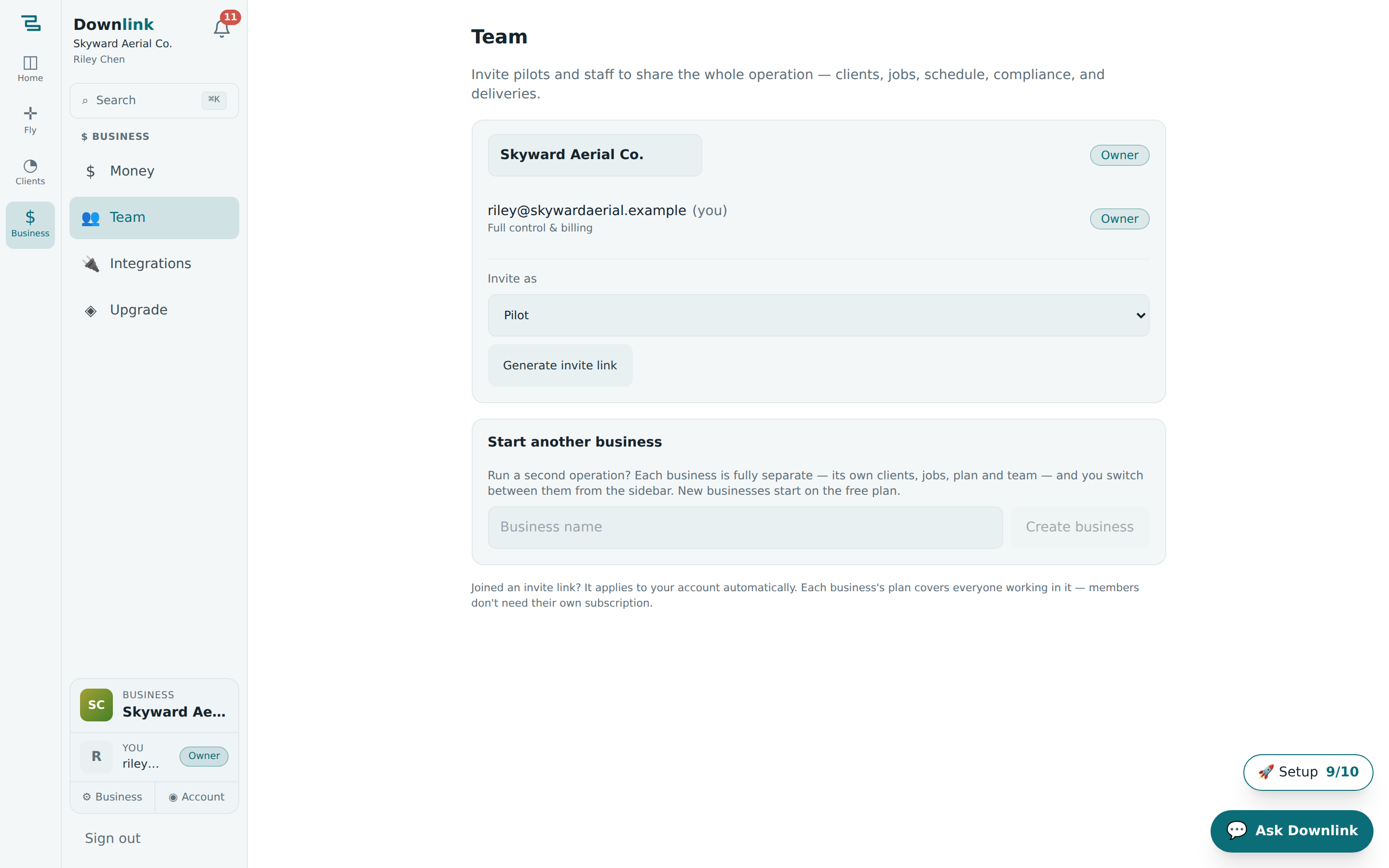
The Team page lists every business you belong to. Each one shows its roster — who's on it and what role they hold — plus, for owners and admins, the controls to invite, re-role, or remove people. At the bottom you can also start a second business.
Inviting teammates is included on the Max plan. The invite tools show as locked on Free and Pro. Good news: the business's plan covers everyone in it — your crew inherits Max, so nobody needs their own subscription. See Plans & billing.
Invite a pilot #
- Open Team — from Sidebar → Team, find the card for the business you're staffing.
- Choose the role — in the invite row, set Invite as to Admin, Pilot, Editor, or Viewer (see the table below).
- Generate the link — click Generate invite link. Downlink creates a single-use join code and copies the link to your clipboard automatically — you'll see "Invite link copied — send it to your teammate."
- Send it — paste the link into a text or email. It looks like
https://app.downlinkcrm.com/#/join/<code>. - They join — when they open it while signed in, they're added to the roster instantly and land on the shared dashboard.
Owner Riley Chen at Skyward Aerial Co. brings on a contract pilot to cover the Bluebird Realty and Northgate Construction jobs.
| Field | Example value | Why/Notes |
|---|---|---|
| Business | Skyward Aerial Co. | The card you invite from — the invite joins this operation only. |
| Your role | Owner | Only owners and admins can invite. Riley owns the business. |
| Invite as | Pilot | Lets them fly jobs and log flights, without billing or team control. |
| Generate invite link | https://app.downlinkcrm.com/#/join/9f3ka2 | Auto-copied to your clipboard when you click. Single-use. |
| Send to | morgan.pilot@skywardaerial.example | However you reach them — text or email. The code, not the address, does the joining. |
| Result | Morgan appears on the roster as "Pilot" | Instantly shares Bluebird Realty, Northgate Construction & Cedar Ridge HOA work. |
Roles & permissions #
Every member holds exactly one role, set when you invite them and changeable any time from the dropdown beside their name. Two roles run the business; three work inside it. What each can do is enforced, not just a label — a Viewer genuinely can't change anything.
Run the business #
- Owner — full control, including billing and the subscription. Everything an Admin can do, and then some: the owner is permanent — there's exactly one per business, and they can't be removed or re-roled.
- Admin — runs the operation: invite and remove teammates and set their roles, edit the business profile, logo and website, change the plan and billing, and create or edit any data.
Work inside it #
- Pilot — for the crew flying jobs: plan and fly missions, run Flight Day, scan equipment onto a mission, log flights, and work clients, jobs and deliveries. No access to the team, billing, or business settings.
- Editor — for whoever finishes the work: build and edit deliverables, galleries and media, alongside the day-to-day client and job data. No access to the team, billing, or business settings.
- Viewer — read-only. Sees the whole operation — clients, jobs, schedule, missions, compliance and deliveries — but can't change anything. Ideal for a client, accountant, or stakeholder who just needs to look.
| Can they… | Owner | Admin | Pilot | Editor | Viewer |
|---|---|---|---|---|---|
| See all the business's data | ✓ | ✓ | ✓ | ✓ | ✓ |
| Add & edit clients, jobs, missions, deliveries | ✓ | ✓ | ✓ | ✓ | — |
| Plan & fly missions, run Flight Day, log flights | ✓ | ✓ | ✓ | ✓ | — |
| Build & edit deliverables, galleries & media | ✓ | ✓ | ✓ | ✓ | — |
| Invite / remove teammates & set roles | ✓ | ✓ | — | — | — |
| Edit business profile, logo & website | ✓ | ✓ | — | — | — |
| Manage the plan & billing | ✓ | ✓ | — | — | — |
To change someone's role, pick a new one from the role dropdown next to them. To take someone off the crew, click the × at the end of their row. The owner can't be re-roled or removed.
Give a contract pilot the Pilot role and an editing subcontractor Editor — they get exactly what they need and nothing else. Save Admin for people you trust to invite others and manage the roster.
Joining a business #
Been sent a join link? It's the easiest thing on this page:
- Sign in first — make sure you're signed in to your own Downlink account (create one free if you haven't).
- Open the link — click the
/#/join/<code>link. Downlink redeems it automatically — no form to fill. - You're on the team — you'll see a confirmation and can go straight to the dashboard, now sharing that business's clients, jobs, and deliveries.
You can belong to several businesses at once — say your own solo operation plus a crew you fly for. Switch which one you're working in from the account switcher in the sidebar; each keeps its own clients, plan, and team completely separate.
Start another business #
Run a second operation? Scroll to Start another business on the Team page, type a Business name, and click Create business. It's fully separate — its own clients, jobs, plan, and team — and new businesses start on the free plan.
Each generated link redeems once, for one teammate. Bringing on two pilots? Generate a link for each. If a link is ever misplaced, just generate a fresh one — the old code can't add anyone else.