Social & listings
Social & listings is the marketing side of Downlink beyond the inbox: plan and schedule your social posts in one place, and keep your business details identical across every directory local customers search. It's part of the Pro plan.
Where to find it #
Sidebar → Social & listings
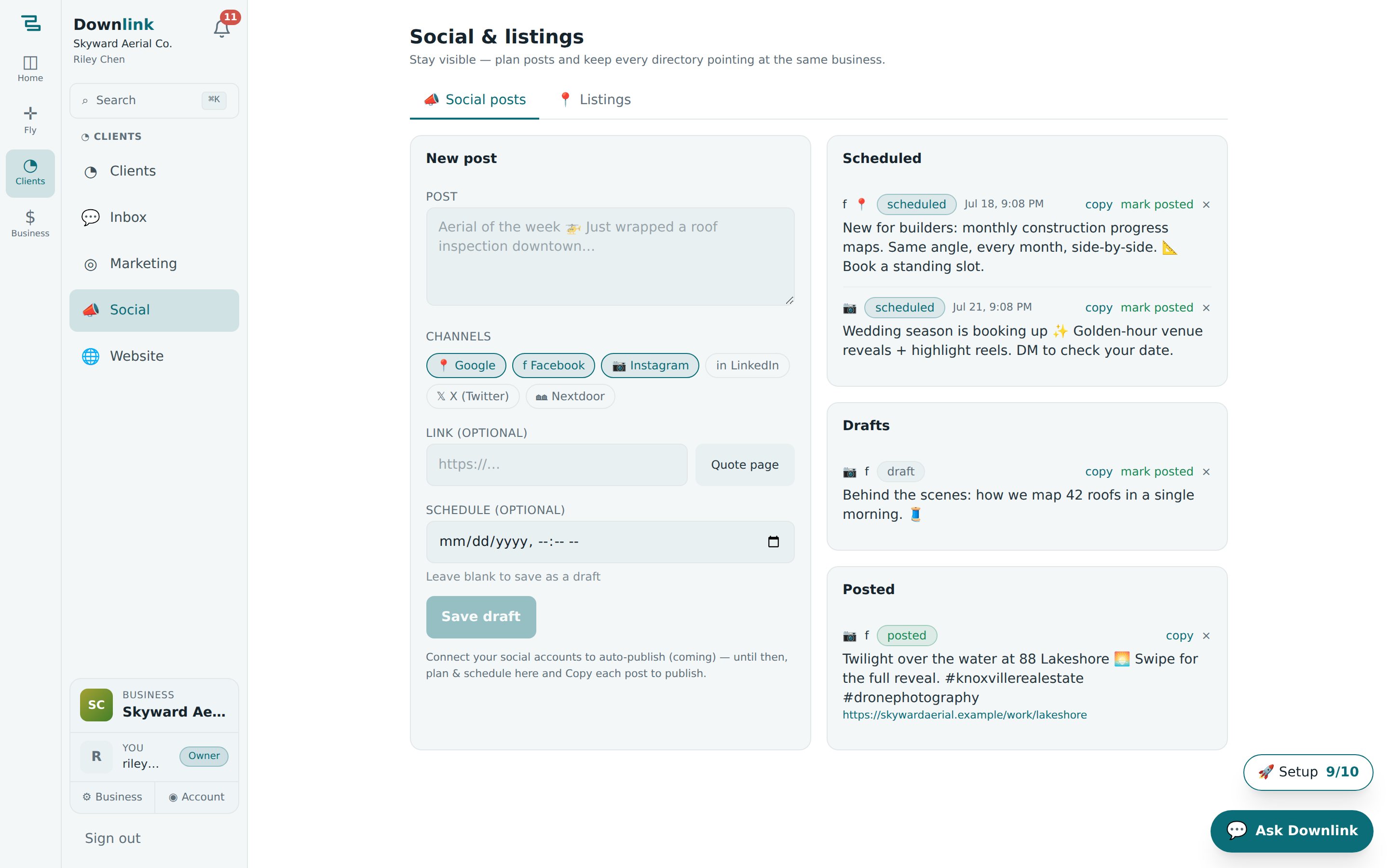
The page opens with two tabs — 📣 Social posts and 📍 Listings. Posts is where you draft and schedule; Listings is where you track every directory you're on.
Social & listings is included on Pro. On a lower plan you'll see the page but the tools stay locked until you upgrade.
Plan a social post #
- Write the post — on the Social posts tab, type your caption into the Post box in the New post card. Emoji are welcome.
- Pick channels — tap the chips to choose where it goes: Google, Facebook, Instagram, LinkedIn, X (Twitter), or Nextdoor. Google, Facebook and Instagram are selected by default.
- Add a link — optional. Paste any URL, or hit the Quote page button to drop in your hosted quote page so a post can turn into a lead.
- Schedule or draft — set a date and time under Schedule and the button becomes Schedule; leave it blank and it reads Save draft. Either way the post lands in the list on the right.
Saved posts group into Scheduled, Drafts, and Posted. On any row you can copy the text (with its link) ready to paste, mark posted once it's live, or remove it with ×.
Auto-publishing to your accounts is coming. For now, plan and schedule here, then use copy to grab the caption and link and paste it into each network — one tidy source of truth for what's going out and when.
Riley Chen at Skyward Aerial Co. lines up a Friday post showing off a fresh listing shoot:
| Field | Example value | Why/Notes |
|---|---|---|
| Post | Golden-hour aerials over Cedar Ridge this week 🚁 Roof-to-ridgeline in one pass. Booking August dates now. | The caption. Keep it short and lead with the image. |
| Channels | Google · Facebook · Instagram · Nextdoor | Nextdoor added to reach the Cedar Ridge HOA's neighbours. |
| Link | Quote page | The hosted quote page, so a click becomes a lead. |
| Schedule | Fri 24 Jul 2026, 08:30 | Morning slot; leave blank to keep it as a draft instead. |
Keep your listings consistent #
The Listings tab exists for one reason: local search engines rank you higher when your Name, Address and Phone — your "NAP" — match everywhere. The top card shows your NAP as a single line pulled from Business settings, with a Copy name · address · phone button so you can paste the exact same text into each directory.
- Set your NAP once — fill in name, address and phone in Business settings; it flows straight into this card.
- Add the essentials — on a fresh account, click Add the essentials to seed the directories that matter most for a drone shop: Google Business Profile, Facebook Page, Instagram, Yelp, Bing Places, Apple Business Connect, Nextdoor, Angi, Thumbtack and Droners.io.
- Track each one — set a status per directory (listed, claimed, needs update, or not listed) and paste the listing URL. The card header counts how many are live.
- Add your own — type any other directory into Add another directory… and hit Add to include local or niche sites.
"Ste 200" on one site and "Suite 200" on another reads as two businesses to a search engine and dilutes your ranking. Always use the Copy name · address · phone button so every directory carries character-for-character identical details.