Dashboard
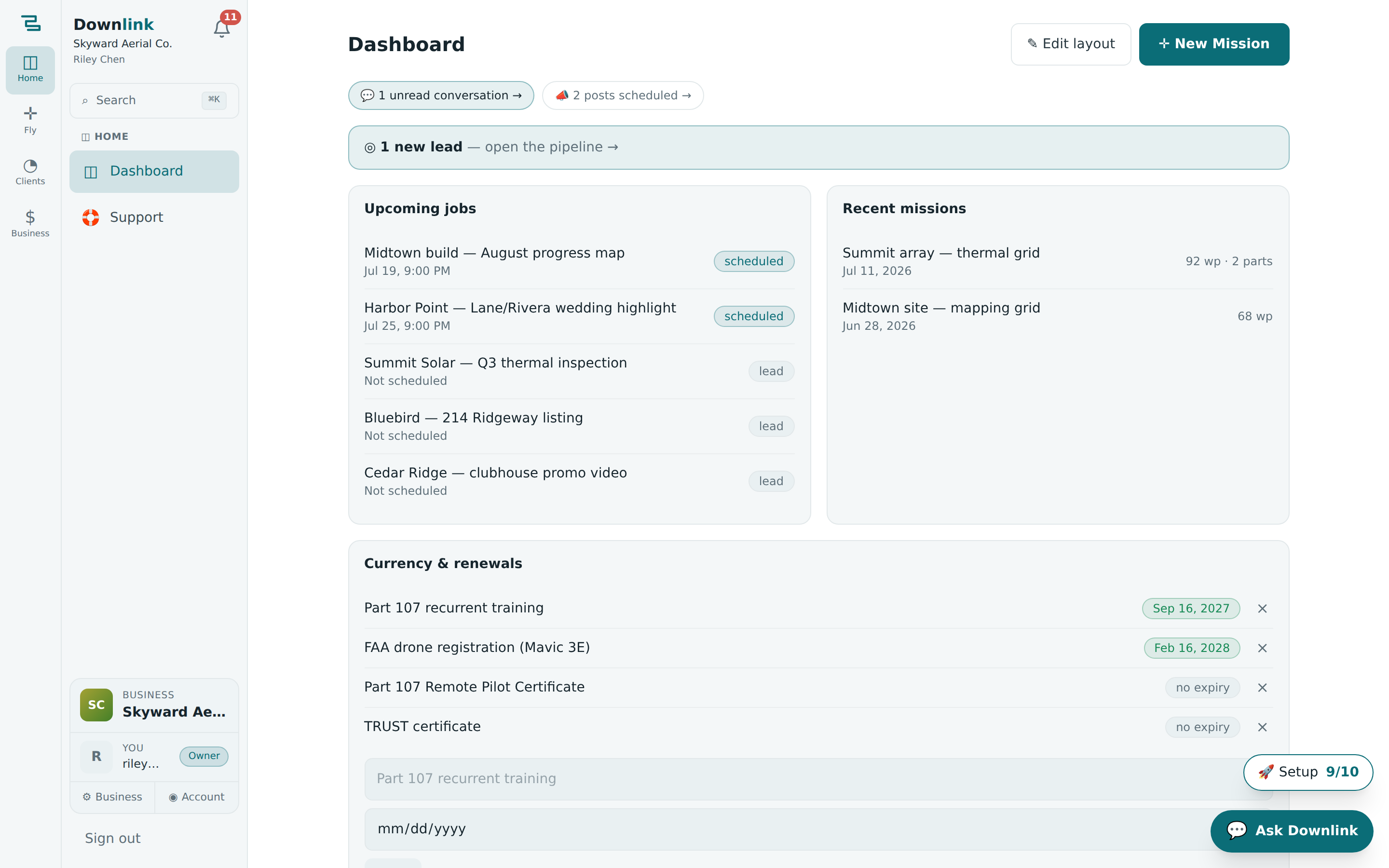
The dashboard is your home screen — the first thing you see when you sign in. It's a grid of live widgets pulling from every corner of Downlink, and it's yours to arrange: drag the cards you care about to the top, size them how you like, and hide the ones you don't.
Where to find it #
Sidebar → Dashboard — it's the top item, and it's where the app opens by default.
Across the top you'll find the Dashboard heading, an ✎ Edit layout button, and a ✛ New Mission shortcut that drops you straight into the planner.
What's on it #
Just above the widgets, Downlink surfaces nudges when something needs you — unread conversations, scheduled social posts, new or overdue leads — each a one-tap link to the right place. Below that sits the widget grid. You can show any mix of these:
- Upcoming jobs — your next shoots, soonest first.
- Recent missions — the latest flight plans you've touched, with waypoint counts.
- Today — everything scheduled for today.
- Lead pipeline — new leads and overdue follow-ups at a glance.
- Inbox — unread conversations count.
- Social queue — posts waiting to go out.
- Revenue — collected this month and what's outstanding.
- Currency & renewals — Part 107 recurrency, registrations, insurance and equipment service due (part of Pro).
- Quick actions — one-tap shortcuts to common jobs.
Rearrange your dashboard #
- Enter edit mode — click ✎ Edit layout. Each widget gets a handle bar and every card is outlined; a banner explains the controls. Changes save as you go, so there's no separate Save button.
- Reorder — drag a widget by its handle (⠿) to a new spot, or use the ↑ / ↓ arrows to nudge it earlier or later.
- Resize — hit ⇔ on a widget to toggle it between half width (side-by-side, two per row) and full width (a full row of its own).
- Remove — click ✕ to take a widget off the grid. It's not gone for good — it drops back into the Add list.
- Add — any widget not currently placed appears as a + chip in the edit banner. Click one to add it to the bottom, then drag it where you want.
- Finish — click ✓ Done to leave edit mode.
In edit mode there's a Reset to default layout link. It puts things back to Upcoming jobs, Recent missions, and a full-width Currency & renewals — handy if you've experimented yourself into a corner.
Riley Chen runs Skyward Aerial Co. and wants the dashboard to answer one question each morning: what's on today, and are we getting paid? Here's the layout Riley builds.
| Widget | Width | Why Riley placed it here |
|---|---|---|
| Today | half — top left | First thing to check: is the Cedar Ridge HOA roof inspection still on the books for this afternoon? |
| Upcoming jobs | half — top right | The week ahead, soonest first — the Bluebird Realty listing shoot is next up. |
| Revenue | half | Collected this month vs. outstanding — Northgate Construction's invoice is still unpaid. |
| Lead pipeline | half | New leads and any follow-ups going cold, so Riley can jump on them while they're warm. |
| Recent missions | full — its own row | Wide row for the latest flight plans; easy to reopen the Cedar Ridge grid before heading out. |
| Currency & renewals | full — bottom | Keeps Riley's Part 107 recurrency and the Mavic 3's service date in view (Pro feature). |
| Inbox, Social queue, Quick actions | removed | Riley works messages from the sidebar instead, so these come off the grid to cut clutter. |
The arrangement is saved per user — instantly on the device you're using, and best-effort to your profile so it syncs across the phone, tablet, and laptop you sign in on. If you turn a whole module off in settings, its widget quietly steps aside with it and reappears when you switch the module back on — nothing is deleted from your layout.