Set up your business
Your business profile is the brand behind everything Downlink sends out — it names and badges your quote page, invoices, client galleries and pilot card. Set it once, tell the app what kind of drone work you do, and the guided checklist walks you through the rest.
Where to find it #
Sidebar footer → ⚙ Business
Open the account switcher at the bottom of the sidebar and click Business. Everything on this page is scoped to the business you have in focus, so if you run more than one it changes as you switch. Owners and admins can edit; everyone else sees the same details read-only.
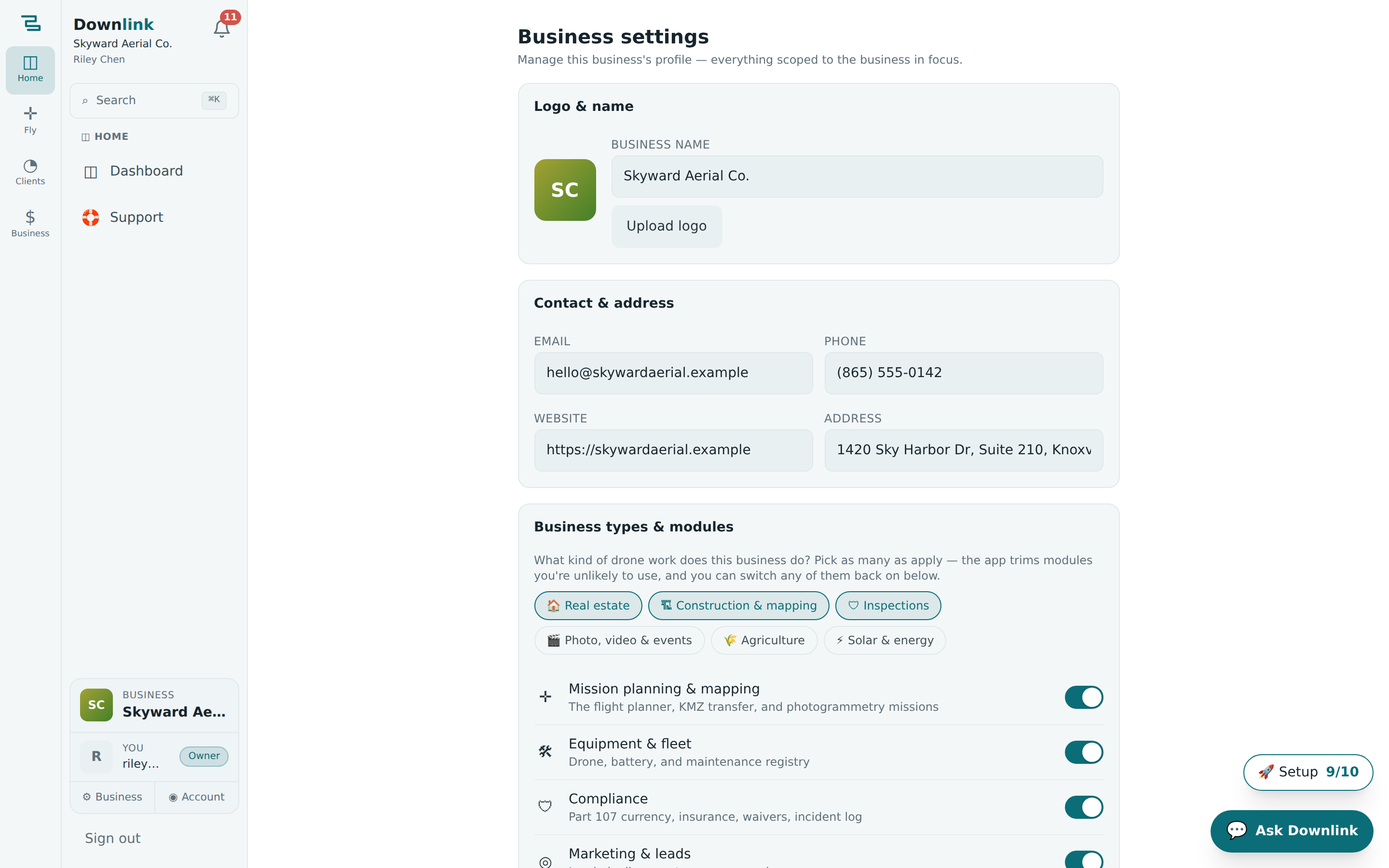
Set up your business profile #
- Name it — under Logo & name, type your Business name. This is the name clients see on quotes, invoices and galleries.
- Add a logo — click Upload logo and pick a square image. Until you do, Downlink shows a tidy coloured monogram of your initials. Use Replace logo or Remove any time.
- Fill in contact & address — add your Email, Phone, Website and Address. These become the contact details on your public pages, and the phone unlocks the texting inbox.
- Save changes — click Save changes. That's your brand set across the whole app.
Here's how owner Riley Chen fills out the profile for the demo business.
| Field | Example value | Why/Notes |
|---|---|---|
| Business name | Skyward Aerial Co. | Shown on quotes, invoices, galleries and the pilot card. |
| Logo | skyward-mark.png | A square PNG; falls back to an "SA" monogram if left blank. |
| hello@skywardaerial.example | The reply-to on client-facing pages and messages. | |
| Phone | (865) 555-0118 | Powers the texting inbox and appears as your contact number. |
| Website | skywardaerial.example | Linked from your quote page and client galleries. |
| Address | 140 Gay St, Knoxville, TN 37902 | Your "NAP" — keep it identical everywhere for local listings. |
Each business you run in Downlink keeps its own separate profile, logo and modules. Switch between them from the account switcher at the bottom of the sidebar.
Business types & modules #
The Business types & modules card is where you tell Downlink what kind of work you do. Pick as many as apply — the app then trims the modules you're unlikely to need, keeping your navigation focused. Nothing is deleted; it's purely UI state for this business.
Pick your business types #
Tap the pills that fit — several at once is normal:
- Real estate — listing photos, twilights, video tours
- Construction & mapping — progress docs, orthomosaics, surveying
- Inspections — roofs, facades, towers, claims
- Photo, video & events — weddings, FPV, commercials, events
- Agriculture — crop scouting, field mapping
- Solar & energy — arrays, turbines, lines, substations
Turn modules on or off #
Below the types is a switch for each module. Flip any of them on or off yourself, regardless of the types you picked:
- Mission planning & mapping — the flight planner, KMZ transfer and photogrammetry missions
- Equipment & fleet — drone, battery and maintenance registry
- Compliance — Part 107 currency, insurance, waivers, incident log
- Marketing & leads — lead pipeline, quote page, campaigns
- Social & listings — post planner and local-listings manager
- Communication hub — inbox, auto-replies, follow-up sequences, reviews
- Website & client pages — the site builder, client portal design and custom domain
Switching a module off only hides it for this business — nothing is deleted. If Skyward pick only Real estate, the mapping module tucks itself away; flip it back on here the day they take a survey job and every mission is right where they left it.
The guided setup checklist #
New accounts get a floating 🚀 Setup pill in the bottom-right corner. Open it and the Get set up card lists every step to get trading, with a progress bar that ticks up on its own as Downlink detects real data (a saved client, a rate card, a mission, and so on).
- Tap a step — hit Show me → next to any item and Downlink navigates straight to the right page.
- Follow the arrow — a spotlight dims the screen and a pointing arrow lands on the exact button or panel, with a one-line explainer and its location (e.g. "📍 Sidebar footer → Business").
- Move on — click Got it to tick the step, or Next step → to jump to the next one.
The checklist covers the whole first run: pick your business types, brand the business, add your first client, set your prices, plan a mission, share your quote page, connect payments, load your credentials, set up your pilot card and pick your plan.
Minimised the guide or dismissed it with ✕? Bring it back from the command palette — search Setup guide and it reappears, remembering everything you've already completed.