Quotes & invoices
Money is where the flying turns into paid work: build reusable rate cards, quote a job in a click, convert the won quote into an invoice, collect by card, and log your expenses so you can see what each job actually earned.
Where to find it #
Sidebar → Business → Money
The Money page holds your Revenue & pipeline snapshot, Rate cards, Expenses & mileage, and (on Max) Job profitability. Quotes and invoices themselves are built on the job they belong to — open a job and scroll to its Quotes & invoices card. Rate cards are a Pro feature; profitability is Max. See Plans for the split.
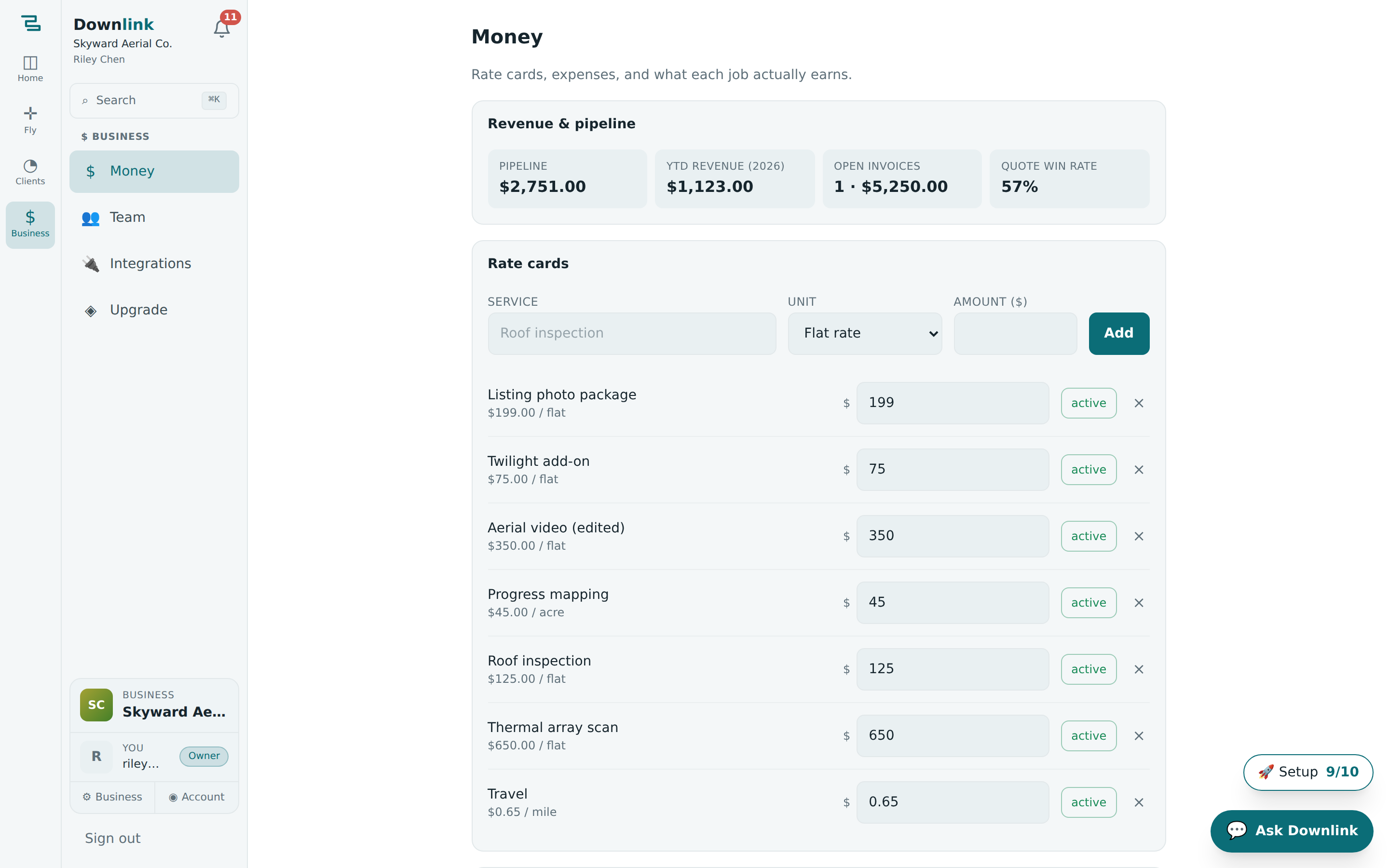
Set up your rate cards #
A rate card is a priced service you sell over and over. Set them once and every quote pulls from them.
- Open Money — find the Rate cards card.
- Name the service — type it under Service (e.g.
Roof inspection). - Pick a unit — Flat rate, Per acre, Per hour, Per mile, Per photo, or Per battery. Metered units let a quote scale to the mission that was actually flown.
- Set the amount and hit Add. Edit the price inline any time, or toggle a card active / inactive to retire it without losing history.
Build a quote #
Quotes live on the job, so revenue stays tied to the record.
- Open the job — from Jobs, open the one you're pricing and find Quotes & invoices.
- Price it — type an amount and press + Quote for a quick figure, or hit ⚡ Quote from mission to build itemised lines automatically from the linked mission's measured acres, flight time, batteries and photos, priced against your active rate cards.
- Share it — press Copy client link to send the hosted quote page, or Preview ↗ to see what the client sees. They can accept online, which stamps the quote ✓ accepted.
If the job has a mission attached in the planner, ⚡ Quote from mission reads its measured quantities and multiplies them by your rate cards — a 6-acre map becomes a "6 × acre" line with no maths. No rate cards yet? It'll tell you to add them in Money first.
Riley Chen quotes Northgate Construction (Sam Ruiz) for a monthly progress map of their Eastyard site, built with ⚡ Quote from mission:
| Field | Example value | Why / Notes |
|---|---|---|
| Job | Northgate — Eastyard progress map | The quote is created inside this job, so its revenue counts toward the job's profit. |
| Client | Sam Ruiz · Northgate Construction | Carried from the job; shown on the hosted quote page. |
| Line — Site mapping | 6 × acre @ $45 = $270.00 | Per-acre card, quantity pulled from the mission's measured area. |
| Line — Roof inspection | Flat = $175.00 | Flat-rate card — one fixed line, no quantity. |
| Line — Photo editing | 2 × hour @ $60 = $120.00 | Per-hour card for post-processing time. |
| Quote number | Q-L5K2P9 | Generated automatically; becomes INV- on the same tail when won. |
| Quote total | $565.00 | Sum of the line items — collected automatically, nothing to add up. |
| Payment link | https://buy.stripe.com/… | Paste a Stripe payment link to let the client pay by card. |
From won quote to paid invoice #
- Mark it won — when the client books, press won → invoice on the quote. It becomes an invoice (the
Q-number rolls toINV-) at status draft. - Collect payment — paste a Stripe payment link into the invoice so the client can pay by card. Connect your account under Sidebar → Business → Integrations and card payments run on your quotes, invoices and deliveries.
- Track the status — move the invoice through draft → sent → paid → void with the status dropdown. Marking it paid feeds your revenue and job profit.
Log expenses & mileage #
Under Expenses & mileage, choose a Category — Fuel, Mileage, Gear, Software, Insurance, Travel, Processing, Editing or Other — set the amount and date, add a note, then Log expense. Pick Mileage and you enter miles instead; Downlink values them at the current IRS standard rate (70¢/mi for 2025) automatically.
See what's coming in #
The Revenue & pipeline card at the top gives you four live figures on every plan: Pipeline (quotes out but not yet accepted), YTD revenue, Open invoices (count and value still owed), and your Quote win rate. On Max, Job profitability nets each job's paid invoices against its logged expenses and shows the margin.
Expenses logged against a job — fuel, drive mileage, editing time — are subtracted from that job's paid revenue in Job profitability, so you see real net, not just top-line takings. Log the drive there and back and the true picture appears.