Settings
Settings is where you tune Downlink to you — the name teammates see, the email you sign in with, your password, whether the app runs light or dark, and exactly which events buzz your notification bell. It's your personal account, separate from any business you fly for, so these choices follow you everywhere you sign in.
Where to find it #
Sidebar footer → ◉ Account
Open the account switcher at the bottom of the sidebar and click Account. Everything here is about you — not the business in focus. Looking for your logo, address, or service modules instead? Those live on the business settings page (the ⚙ Business shortcut right next to this one).
One account, many businesses. Your name, sign-in email, password, appearance, and notification preferences are personal and stay put as you switch between businesses. Each business's own brand and details are edited separately.
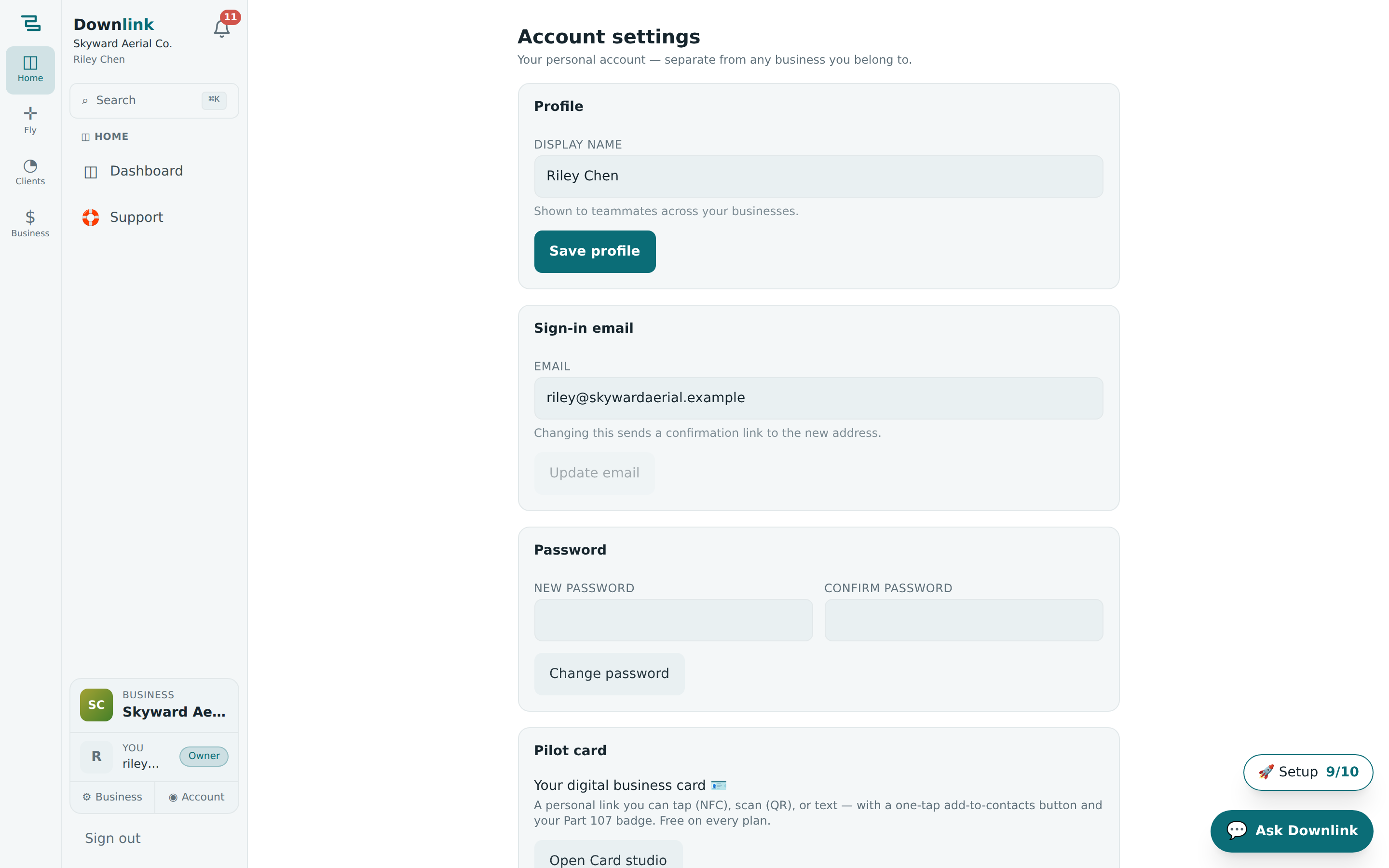
Name, email & password #
Three cards, each with its own save button, so you can change one thing without touching the rest.
- Display name — under Profile, set the name teammates see across your businesses, then click Save profile.
- Sign-in email — under Sign-in email, type the new address and click Update email. Downlink sends a confirmation link to the new address; the change only takes effect once you click it.
- Password — under Password, enter a new one (at least 8 characters), re-type it in Confirm password, and click Change password.
An email change isn't finished until you open the confirmation link sent to the new address. Until then you keep signing in with the old one — so don't retire that mailbox just yet.
Appearance & dark mode #
Pick how the app looks on this device — the choice is stored per device and applies the instant you tap it, no save needed.
- ☀️ Light — bright and crisp, the classic Downlink look.
- 🌙 Dark — easy on the eyes in the field and after hours.
- 🖥 System — follows this device's own appearance setting, flipping with it at sunset.
Just below sits Navigation, where you swap between the Grouped menu (a few areas — Home · Fly · Clients · Business — each opening a second panel) and the Classic list (every page in one flat sidebar). Like appearance, it's per device and reversible any time.
Notifications #
The Notifications card has two layers. The per-type toggles decide what lands in your notification bell and apply to every device you sign in on. The device opt-in is separate, and per device.
- Choose your alerts — flip a switch for each type: 🎯 New lead, 💬 New message, ✅ Quote accepted, 💸 Invoice paid, 👀 Delivery opened, 🛟 Support replies, and 📢 Announcements.
- Turn on this device — under Notifications on this device, click Turn on to get a system banner on this phone or computer even when Downlink is in the background. Hit Send test to confirm it works.
- Repeat per device — each browser and install asks its own permission, so enable it separately on your phone and your laptop. The in-app bell keeps working either way.
Here's how the owner of the demo business Skyward Aerial Co. dials in their personal settings before a busy week of real-estate shoots.
| Field | Example value | Why / Notes |
|---|---|---|
| Display name | Riley Chen | What Skyward's teammates see on jobs and messages. |
| Sign-in email | riley@skywardaerial.example | Update sends a confirmation link here — not live until it's clicked. |
| Password | •••••••••••• | At least 8 characters, typed twice to confirm. |
| Appearance | Dark | Kinder on the eyes flying dawn surveys for Cedar Ridge HOA. Per device. |
| Navigation | Grouped menu | Home · Fly · Clients · Business, each with a second panel. |
| Alerts on | New lead · New message · Invoice paid | The three that need a same-day reply; Announcements muted. |
| This device | On (test sent) | Banners on Riley's phone; enabled again on the studio laptop. |
If the device card reads Blocked, notifications are switched off for Downlink in your browser or OS settings — allow them there, then come back and click Turn on. A new 🎯 lead from Bluebird Realty is worth catching the moment it lands.
Notifications fire off real events — a lead from your quote page, an inbound text in the inbox, an accepted quote, a paid invoice, or a client opening a gallery for the first time. Turn off the ones you don't need and the bell stays quiet for the rest.