Schedule
The Schedule is your flying diary — a calendar-style agenda of every shoot that has a flight date on it. Step through it a day, a week, or a month at a time, and if you run more than one business, see the whole lot on a single timeline.
Where to find it #
Sidebar → Fly → Schedule
The Schedule lives in the Fly group. It appears once you run more than one business, or if you're an agency admin — a single-business pilot manages flight dates straight on the job instead. Every job with a Scheduled for date lands here automatically; there's nothing extra to add.
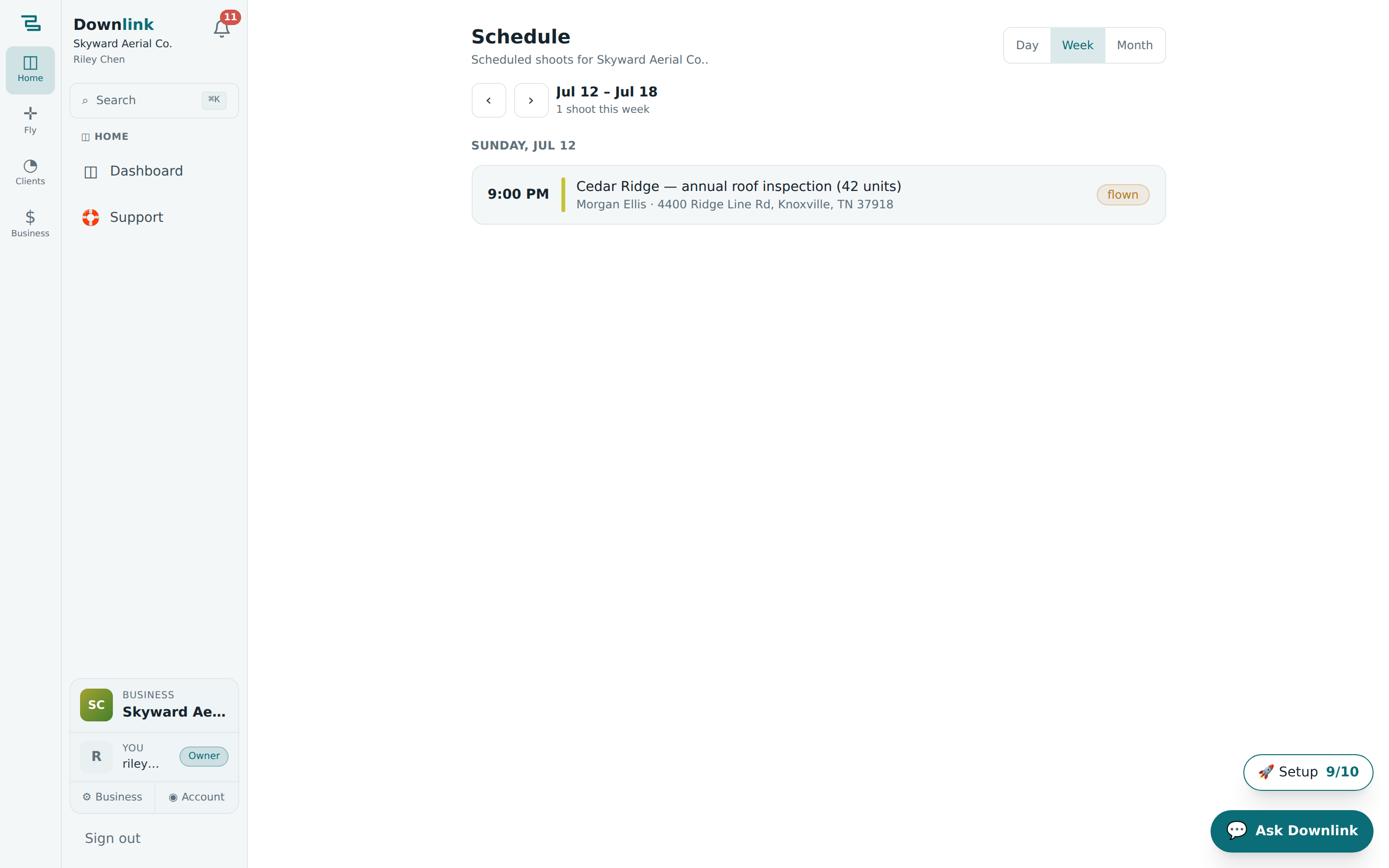
Switch between Day, Week and Month #
Up top you'll find a Day / Week / Month toggle. Pick the zoom level that suits you — Day for a tight shot list, Week for the usual planning horizon (the default), Month for the big picture.
- Choose a view — tap Day, Week or Month. Switching keeps you roughly where you were looking, so you don't lose your place.
- Cycle periods with the arrows — the ‹ and › buttons step back and forward one day, week, or month at a time. The label beside them names the period ("Jul 12 – Jul 18", "July 2026") and counts the shoots in it.
- Jump back with Today — arrow away from the present and a Today button appears on the right; tap it to snap back to the current period.
- Open a shoot — each row shows the time, the job title, and the client and address. Tap any row to open that job.
Get a shoot onto the Schedule #
A job shows up here the moment it has a flight date. You set that on the job itself, two ways:
- Type a date — on the job, use the Scheduled for field in the Schedule card to pick a date and time.
- Or tap a ranked flight window — the job's Flight windows card scores the next 7 days on wind, gusts, rain and light. Hit Schedule on the window you want and it drops that time onto the job, nudging a lead up to scheduled for you.
- Watch it land — the shoot now appears on the Schedule at that time, badged with its status (lead, scheduled, flown or delivered).
Riley Chen at Skyward Aerial Co. picks a calm window for a Bluebird Realty listing, then checks the week to make sure it doesn't clash.
| Field | Example value | Why/Notes |
|---|---|---|
| Job | Bluebird Realty — 1200 Market St listing | The job whose flight date you're setting; its title is what shows on the Schedule row. |
| Client | Jordan Avery · Bluebird Realty | Shown under the title as "client · address" so you know the row at a glance. |
| Flight window chosen | Fri, Jul 17 · 7:00–9:00am (☀ golden hour) | Tapped Schedule on the top-ranked window — low wind, clear light. |
| Status after scheduling | scheduled | Auto-bumped from lead. Later becomes flown, then delivered. |
| View | Week — Jul 12 – Jul 18 | The period that now shows the new Friday shoot in its list. |
| Scope | All businesses | So the Cedar Ridge HOA and Northgate Construction jobs share the same timeline. |
See every business at once #
Run more than one business — say Skyward Aerial plus a side venture — and a This business / All businesses toggle appears. Switch to All businesses and the Schedule pools every scheduled shoot onto one timeline. Each row gets a coloured bar and a chip naming its business (the same hue as its avatar in the account switcher), so you can tell a Cedar Ridge HOA flight from a Northgate Construction one at a glance.
Tap a shoot from another business in the All-businesses view and Downlink quietly switches your active business to match before opening the job — so everything loads under the right roof. Your businesses otherwise stay walled off from one another; the Schedule is the one shared overview.
Land on an empty period and the Schedule offers a Next shoot → shortcut that hops straight to the period holding your next booking — no arrowing through quiet weeks. If it's empty because a job has no date yet, set a Scheduled for date (or pick a flight window) and it'll appear.