Messaging inbox
The inbox is one place for every conversation you have with a lead or client — texts, emails, and private notes in a single thread per contact — plus the tools that do the chasing for you: reusable templates, instant auto-replies, follow-up sequences, and review requests.
Where to find it #
Sidebar → Inbox
The communication hub opens on five tabs: 💬 Inbox, 🗂 Templates, ⚡ Auto-replies, 📅 Sequences, and ★ Reviews. It's part of Pro — on the Free plan you'll see it, but you'll need to upgrade and connect a number to send. You can also jump straight to a contact's thread from the Message button on a client's page or the lead pipeline, and the review tracker opens from a finished job.
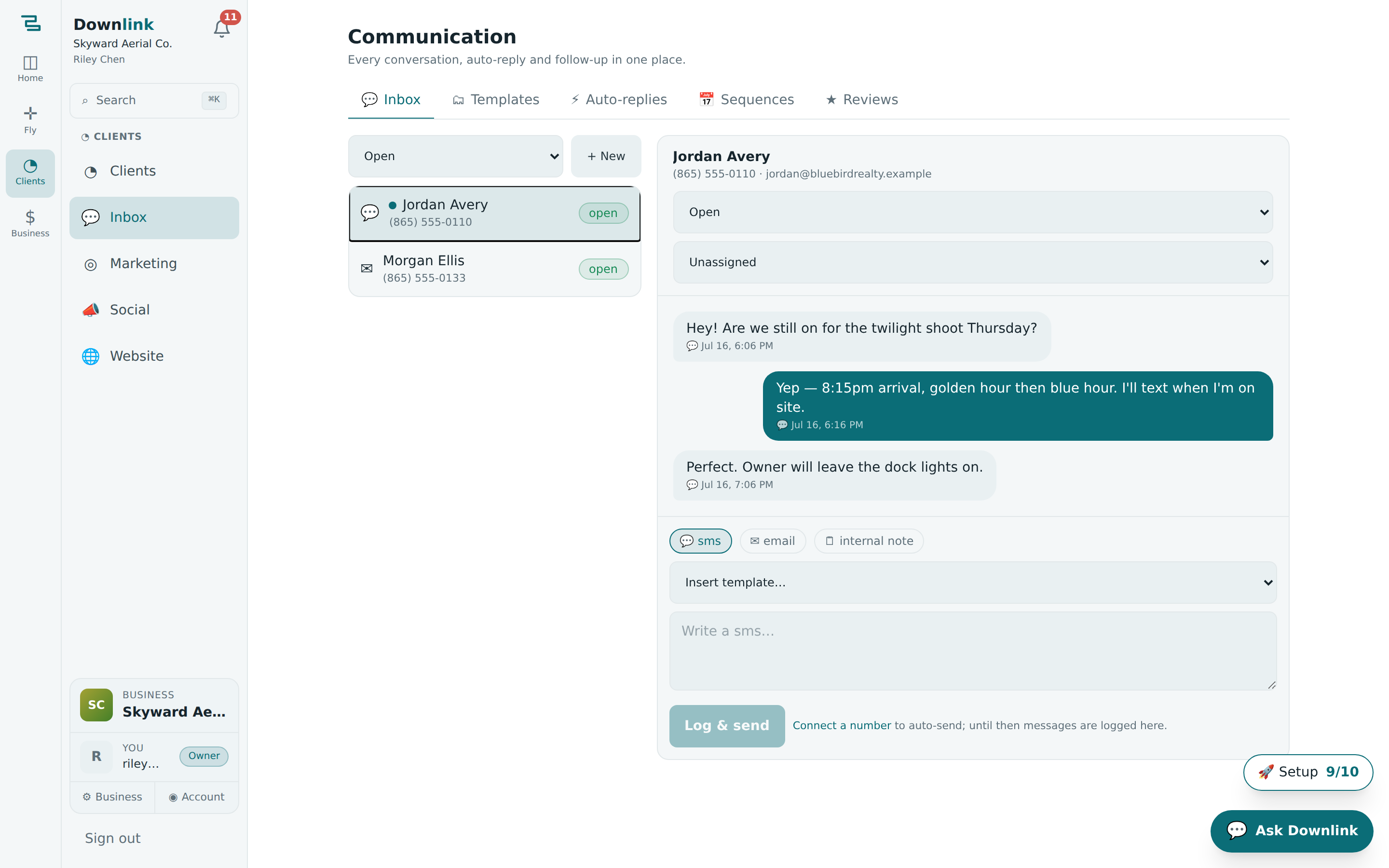
Send and log a message #
- Open a conversation — pick a thread from the list on the left, or click + New and start from a client or a lead. Filter the list by Open, Snoozed, Closed, or All.
- Choose the channel — tap 💬 sms or ✉ email. Prefer to jot something down for the team only? Switch to 🗒 internal note — the client never sees it.
- Write it, or drop in a template — type your message, or use Insert template… to pull a canned reply with the tokens already filled in.
- Log & send — click Log & send (or Save note for a note). With a number connected the text goes out; until then it's logged to the thread so nothing's lost.
- Set the status & owner — from the thread header, mark it Open / Snoozed / Closed and assign it to a teammate so everyone knows who's on it.
Riley Chen fires off a same-minute reply to a construction lead that just landed in the pipeline:
| Field | Example value | Why/Notes |
|---|---|---|
| Start from | Sam Ruiz · Northgate Construction | Pulled from the lead pipeline — name, phone, and email auto-fill the thread. |
| Channel | 💬 sms | Texts get read fastest; swap to email for longer notes with a subject line. |
| Insert template | New-lead first touch | Reusable copy from the Templates tab, so you're not retyping it. |
| Message | Hi Sam, thanks for reaching out to Skyward Aerial Co.! What address should we fly? | The {first} and {business} tokens resolved to Sam and Skyward Aerial Co. |
| Status | Open | Keeps it in the working list; snooze or close once it's handled. |
| Assign to | Riley Chen | Routes the thread to a specific pilot on the team. |
| Action | Log & send | Logs the message and texts it out once a number is connected. |
Templates, auto-replies & sequences #
Templates #
Save a canned reply once and reuse it everywhere. Give it a name, pick a channel (any, sms, or email — email adds a subject line), and write the body. Tokens {first}, {name}, {business}, {area}, and {company} fill themselves in per contact when you insert it.
Auto-replies #
These fire on their own — the speed-to-lead play that wins the job before a rival calls back. Click Add starter rules to seed sensible defaults, then toggle each on or off: New lead — instant reply, Missed call — text back, After-hours auto-reply, and Keyword reply. Set the channel, a delay (or a trigger keyword), and the message.
Sequences #
Build a cadence and stop losing leads to silence — a Day 0 text, a Day 2 email, a Day 5 call. Each step has a wait (in hours), a channel (sms, email, or call), and its own message. Toggle the whole sequence on when it's ready.
Review requests #
On the ★ Reviews tab, pick a client, paste your Google Business review link (the g.page/r/… URL), and Queue review request. Track each one through pending → sent → left, using mark sent and left ✓ as they progress. The best moment to ask is right after you hand over a delivery, while the client's still delighted.
Two-way texting lives on Pro and Max. Each paid plan includes a monthly text allotment; once you pass it, texts draw from a prepaid wallet (email stays free). Connect a number and watch your usage on the Plans & billing page — until a number's live, messages are simply logged here.
The 🗒 internal note is your team's private margin — context for whoever picks up the thread next. Use it freely; only sms and email are sent to the contact.