Compliance vault
The Compliance vault is your audit-ready record of everything that keeps you legal to fly — Part 107 currency, aircraft registration, insurance, maintenance, incidents and waivers — each with a renewal chip that turns amber before it lapses and red once it has. It's the paperwork you never want to go hunting for the night before a shoot.
Where to find it #
Sidebar → Compliance
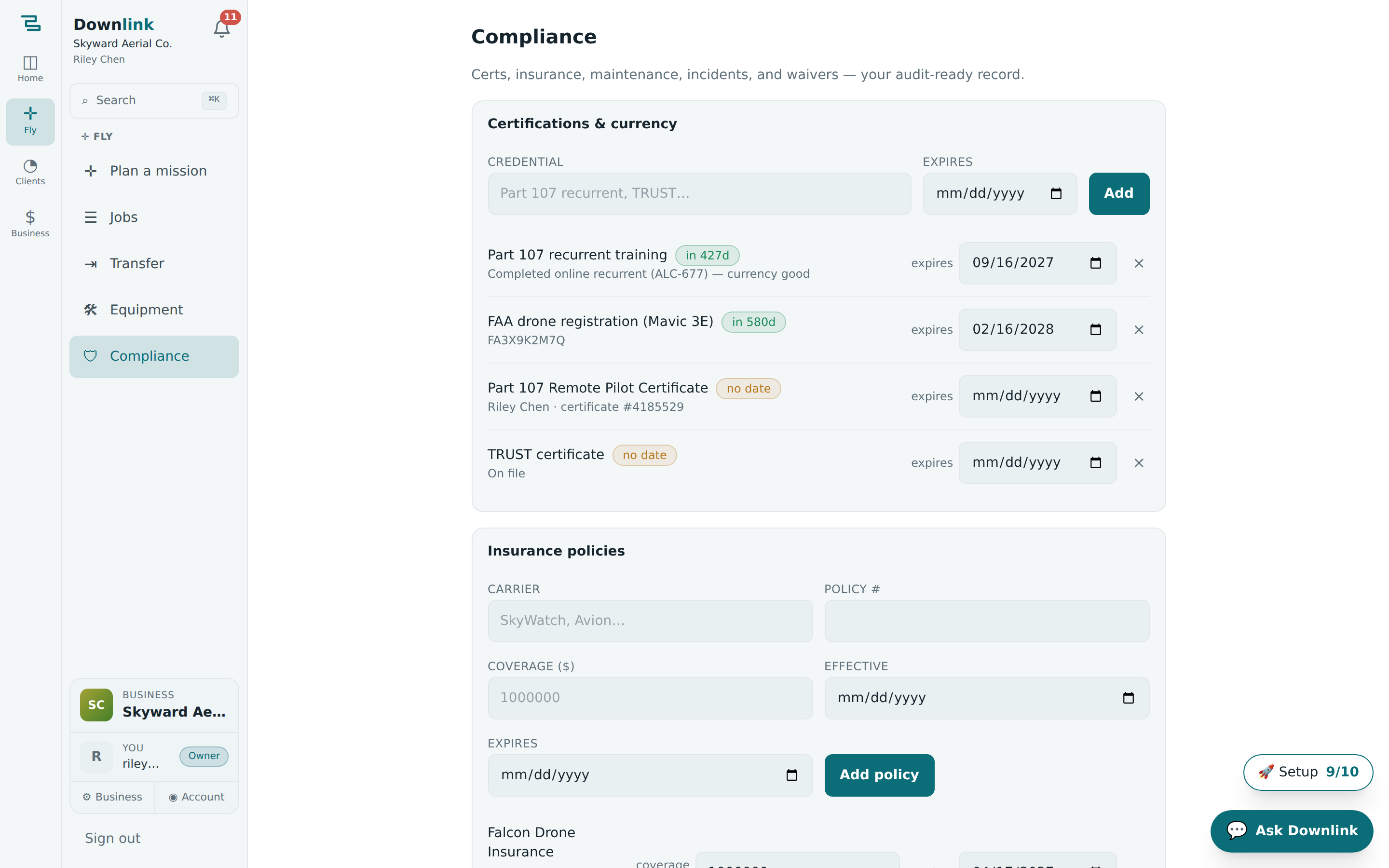
The page stacks a card for each record type — Certifications & currency, Insurance policies, Maintenance log, Incident reports (FAA 107.9), and Waivers. Every card has a short add-form up top and a running list below, and each row carries a colour-coded expiry chip so you can read your whole legal standing in one scroll.
Certifications & currency is on every plan. Insurance, Maintenance and Incident reports unlock on Pro; Waivers on Max. Locked cards stay visible so you know what's there — see Plans & billing to upgrade.
What lives in the vault #
- Certifications & currency — a Credential name (e.g. Part 107 recurrent, TRUST) and its Expires date. This is your pilot currency.
- Insurance policies — Carrier, Policy #, Coverage ($), Effective and Expires dates.
- Maintenance log — pick the Equipment, a Type (Service, Firmware, Repair or Inspection), the Performed date, Hours at service, a Next due date and Notes.
- Incident reports (FAA 107.9) — Occurred, Description, a Serious injury flag, Property damage ($) and an optional Narrative; each carries a status of Open, Reported or Closed.
- Waivers — Waiver type (107.39, 107.29, 107.31, 107.25 or Other), Waiver #, Granted and Expires dates, and free-text Provisions.
Your FAA registration number and its expiry are stored on each aircraft over on the Equipment page, not here — that way the registration travels with the drone it belongs to. Both feed the per-job Flight-Readiness Gate described below.
Track a credential, step by step #
- Open the vault — from Sidebar → Compliance, find the Certifications & currency card.
- Name the credential — type it into Credential — for example
Part 107 recurrentorTRUST. This field is required. - Set the expiry — pick the Expires date. That's what drives the renewal chip; leave it blank and the row shows a no date warning instead.
- Add — click Add and it lands in the list with a live countdown chip. Adding a policy, maintenance entry or waiver works the same way in its own card.
Here's how Skyward Aerial Co. (owner Riley Chen) logs the liability cover it renews each year:
| Field | Example value | Why/Notes |
|---|---|---|
| Carrier | SkyWatch | Who the policy is with. Required to add the record. |
| Policy # | SW-2026-88134 | The reference a client's insurer will ask for on a certificate request. |
| Coverage ($) | 1000000 | $1M liability — shown on the row as formatted coverage; editable inline. |
| Effective | 2026-06-01 | When cover starts. |
| Expires | 2027-05-31 | Drives the renewal chip — amber inside 30 days, red once lapsed. |
Incident reports (FAA 107.9) #
File an incident with the time it Occurred, a short Description, whether a Serious injury was involved, any Property damage ($), and an optional Narrative. Downlink then works out whether it's FAA-reportable for you.
FAA 14 CFR 107.9 requires reporting a serious injury or ≥ $500 in property damage within 10 days. When either applies, Downlink flags the report as reportable and stamps a red report-due date exactly 10 days out — the chip clears once you move the status to Reported or Closed.
How the reminders work #
Every expiry date across the vault gets the same at-a-glance chip: green while there's plenty of runway, amber inside 30 days, and red once it's lapsed (showing how many days ago). Your soonest renewals also surface on the dashboard, so nothing sneaks up on you.
These records aren't a filing cabinet you forget about — a lapsed Part 107 or aircraft registration turns a job's Flight-Readiness Gate red and blocks the controller export until you sort it. Keep the vault current and the green light takes care of itself.